Faster onboarding: pick categories, not type them
A new step in the setup checklist lets you bulk-pick common categories — rent, groceries, transportation — instead of typing them one at a time. It fixes the real gap where a fresh account had nothing to select in the budget step.
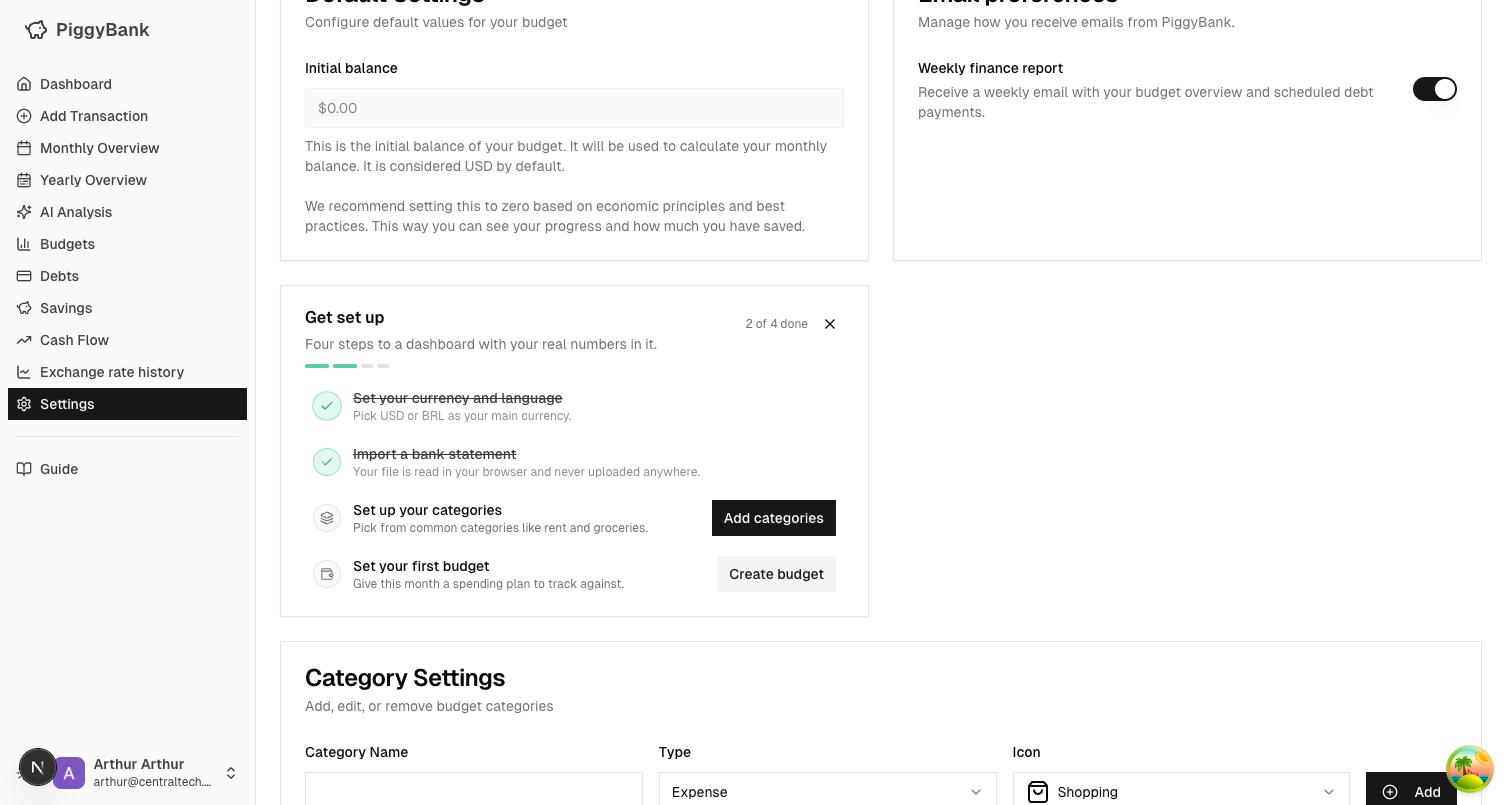
One more step in Get set up
Settings → Setup checklist (or the card that shows up automatically on Dashboard for new accounts) now has four steps instead of three: currency & language, import a statement, set up your categories, and create your first budget. Each step opens in place and marks itself done the moment it actually has something to show for it.
Grouped, pre-checked, one tap away
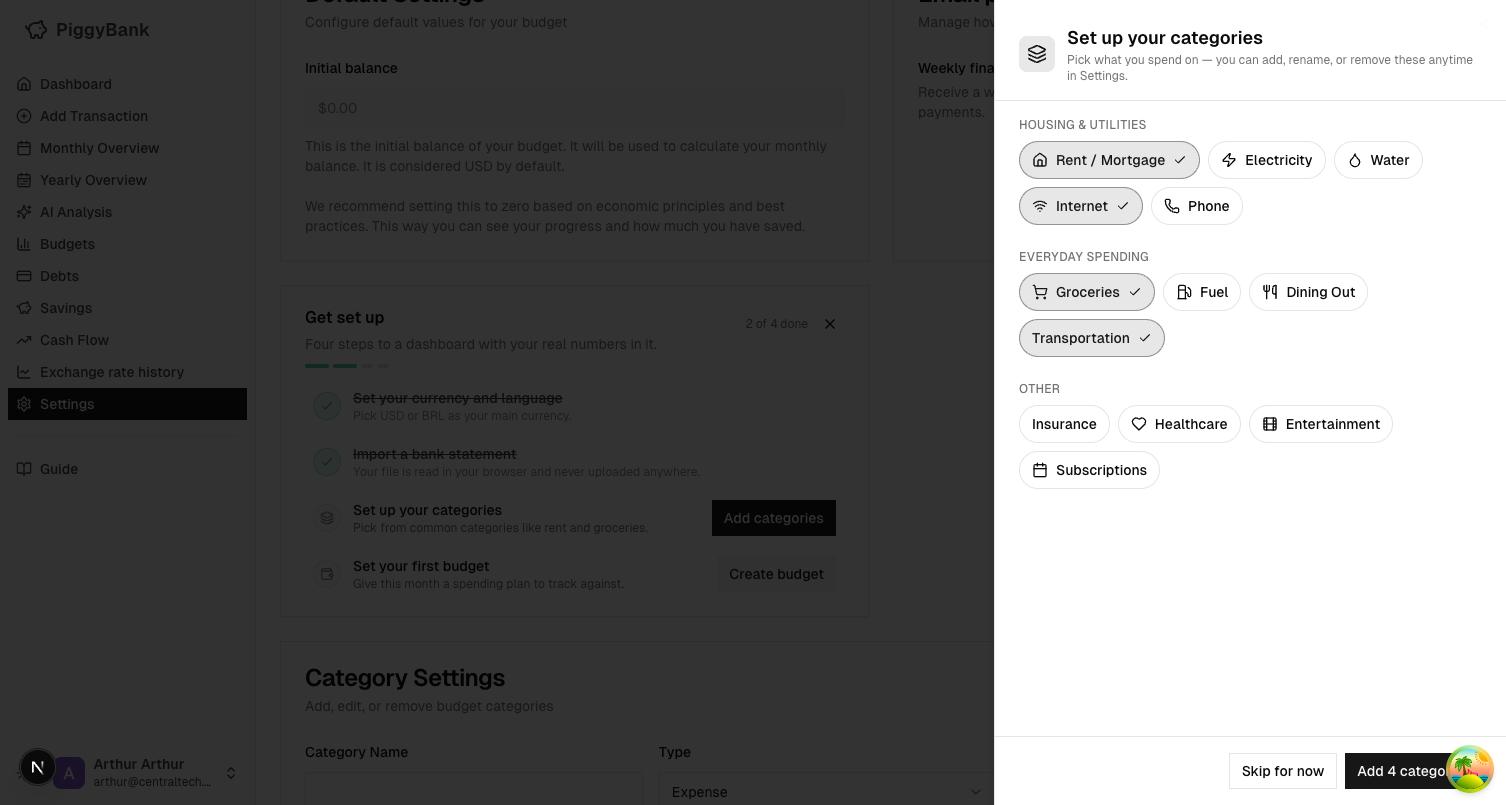
The picker groups categories into Housing & utilities, Everyday spending, and Other, with the four most common ones — Rent/Mortgage, Internet, Groceries, Transportation — pre-checked. Tap any chip to toggle it, then Add or Skip. Nothing here is permanent: rename, add, or remove categories anytime from Settings.
Why this mattered
Every account used to start with zero categories, which meant the "Create your first budget" step opened a category dropdown with nothing in it — a dead end with no way forward short of typing a category by hand in Settings first. The picker exists specifically to make that next step actually usable.
Pairs naturally with statement import
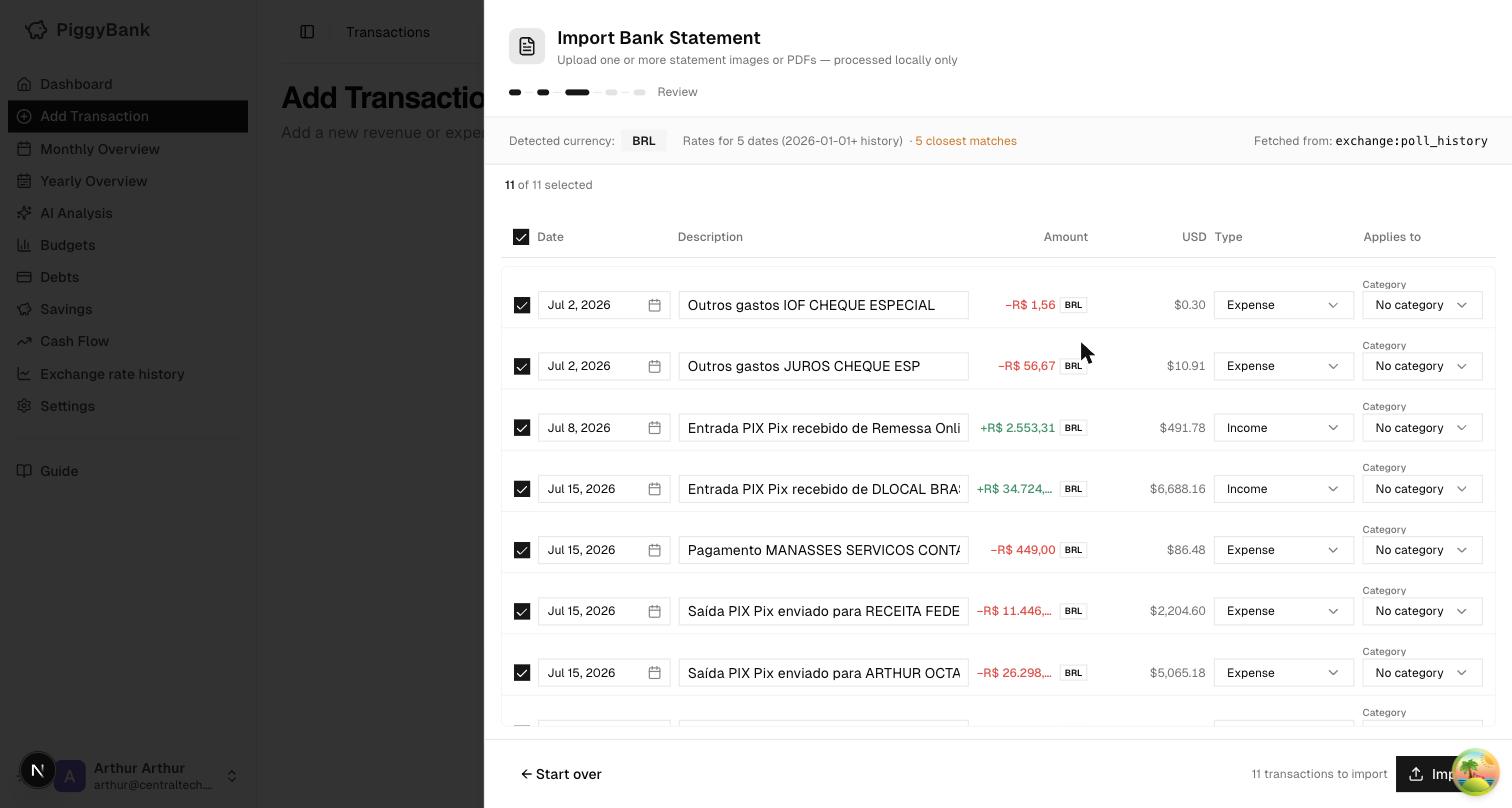
Import a statement first and the parsed transactions already show you what you actually spend on — categorize as you review, or use the picker to get a starting set in place before you import. Either order works.
Open the setup checklist from Settings any time you want to revisit these steps.